From October 1st Microsoft will disable basic authentication for all Office 365 accounts.
From this date OAuth2 will have to be used.
In this article we outline how to set this up within Transpas.
At the moment OAuth2 is only supported by Office 365. Gmail may be implemented in the future.
¶ Check
Transpas version 2.25 Release: 1 is requirement for using OAuth2.
You can check this by opening the menu-item Help > Version-information whether you have the right version.
Is the version incorrect? Contact us for an update.
¶ Set up
Depending on the company policy an administrator account may be required.
In general the systems administrator or IT department manages this.
Incoming and outgoing e-mail is authenticated separately.
When both are used, you will have to follow the steps below for both incoming and outgoing mail.
Open the screen Emailaccounts.
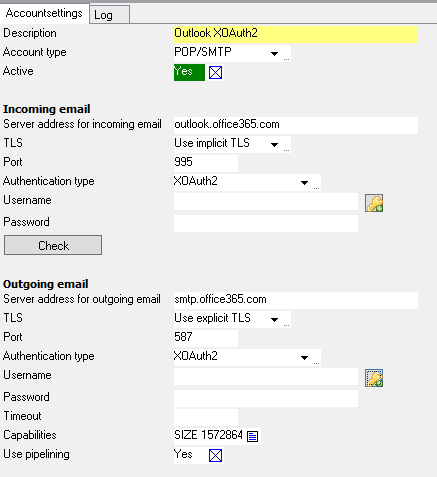
When an account exists that previously used basic authentication, which means a user name and a password, change the Authentication type to XOAuth2 and press the button with the key.
When no account exists yet, create a new account, fill in the correct server settings, set Authentication type to XOAuth2, fill in a username and press the button with the key.
Filling in the field Password is not necessary when using OAuth.
Your default browser will open on the login-screen for your Microsoft account.
Here you will have to log in with the account you have filled in as the emailaccount in Transpas.
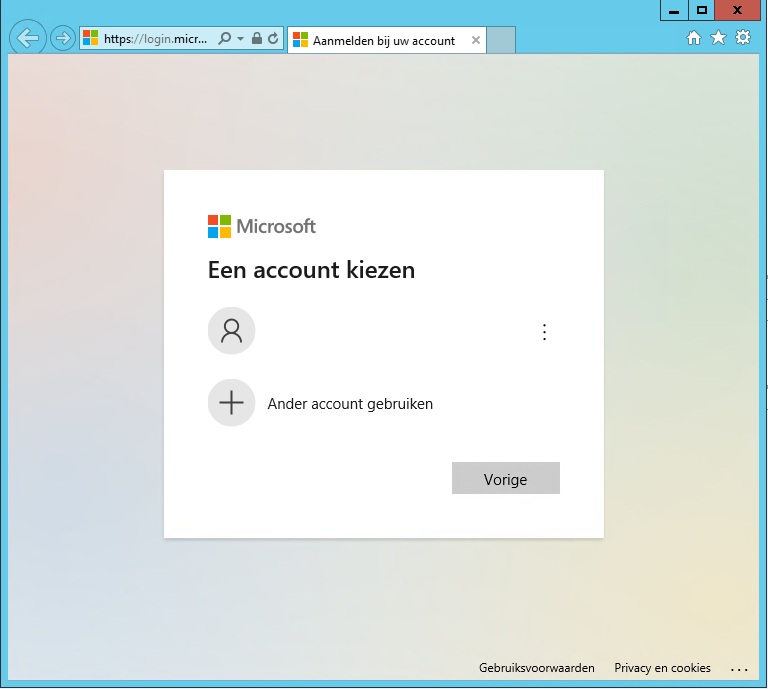
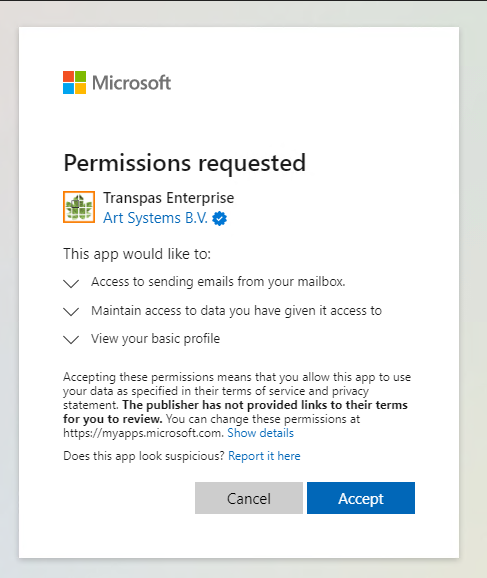
You may see the message that the permission of the administrator is needed.
Log in with your administrator account and give permission to Transpas to access the mailbox.
Logging in with an administrator account is only needed once.
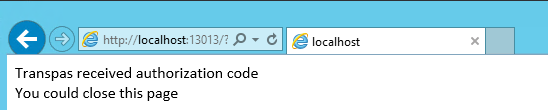
After receiving permission the page will show the message below.
You can then close the browser.
In Transpas the following pop-up will be displayed (in English this will say something along the lines of Authentication for service: "SMTP" successful):
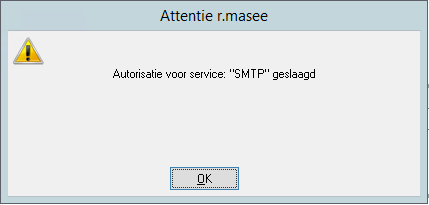
Configuration of OAuth has been successful.
¶ Troubleshooting
¶ Authorization unsuccessful
- Do you see the message Authentication unsuccessful?
Wait 5 minutes and try again. - Does the same message appear?
Click on the button with the key again and log in on your Microsoft account using the email address you have filled in in Transpas.
¶ Logging in doesn't work
Sometimes you don't have the possibility to fill in a password in the Microsoft portal after clicking on an email address.
This means that the email account is a shared mailbox where you can't log in.
In this case contact your Office 365 administrator. This is often your systems adminstrator.
Logging into the emailaccount must be made possibility, or alternatively a mailconnector can be used.